One of the most useful features of SwordSearcher is the ability to copy verses to the Windows clipboard for use in other Windows applications, such as email, chat, word processors, etc. SwordSearcher offers several easy methods of verse copying.
From the Verse List and Bible Panels
Both the Verse List and the Bible panels have verse widgets and right-click pop-up menus for quickly copying verses to the clipboard. Copying verses in this manner uses your export formatting options.
Using the Copy Verse Widget: Click the Copy Verse Widget to copy the verse to the clipboard. Shift+Click the widget to copy a range (from the verse to another verse in the chapter). (See Verse Widgets.)
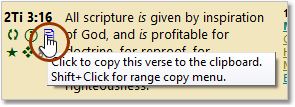
Example of copying a verse to the clipboard with the Copy Verse Widget in the Bible panel.
Using the right-click menu: if you have the verse widget disabled, you can right-click a verse in the Bible panel and use the pop-up menu to copy verses.
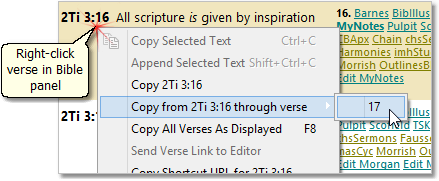
Example of copying verses to the clipboard by right-clicking a verse in the Bible panel
From the Copy Verses Dialog
To copy a verse or a list of verses you have in mind, you can use the Copy Verses dialog. Select Copy Verses from the Edit menu or press F5.
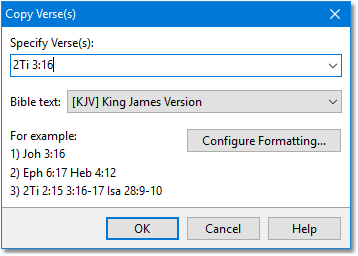
Sample Copy Verses dialog
Enter the verse or list of verses you wish to have copied to the clipboard. For example:
Joh 3:16 would copy John 3:16.
Eph 6:17 Heb 4:12 would copy Ephesians 6:17 and Hebrews 4:12.
Ge 1 would copy Genesis chapter 1 (all verses).
2Ti 3:16-17 would copy 2 Timothy chapter 3, verses 16 and 17.
For ease of typing, you can substitute a period for a colon or omit spaces. For example, you could enter the first example as Joh3.16 instead.
See Book Abbreviations for the book abbreviations SwordSearcher uses. It is not necessary to match these exactly. 1Tim would be recognized the same as 1Ti, Mar would be recognized the same as Mr or Mk for the book of Mark, etc. If you are unsure of the book abbreviations, the general rule is to use the first three letters of the book. For books with numbers, like 1 Timothy, enter them without the space, e.g. 1Ti, 1Co, 2Ki, etc., to avoid confusing book numbers with verse numbers in a list. It is best, though not necessary, to use the standard abbreviations SwordSearcher uses to lower the possibility of SwordSearcher misinterpreting the book you are trying to specify, especially with Philemon (Phm) and Philippians (Php).
Click OK (or press Enter) to copy the verse(s). Click Configure Formatting to change the verse formatting options with the Configure Copy/Export Formatting dialog.
Tip: You can "drag" selected text into the Specify Verse(s) box from another application (or from inside of SwordSearcher) and all of the valid verse references from the text will be filled into the text box automatically.
Automatically From Other Applications