Many of the functions for copying, exporting, or printing verses in SwordSearcher allow you to define the format of the verse output. To configure how verse text is formatted when copied to the clipboard, select Configure Copy/Export Formatting from the Edit menu on the main SwordSearcher menu.
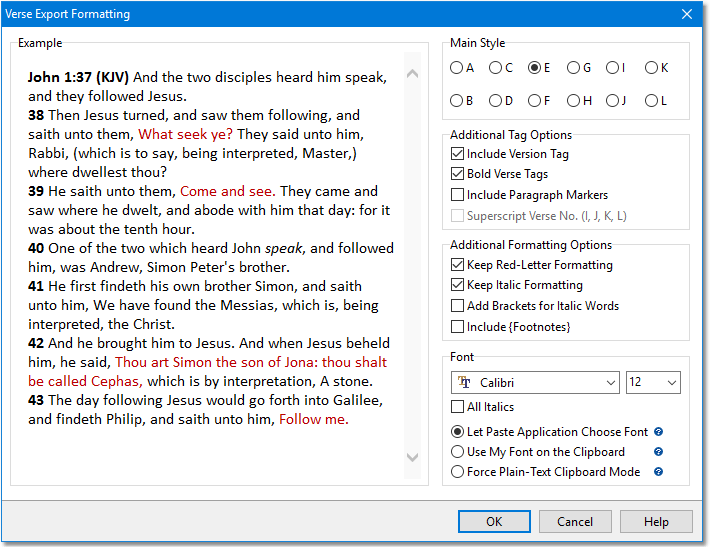
Sample Verse Export Formatting dialog
Main Style: There are several styles to choose from. Experiment by changing the style and viewing the sample. The style controls the basic formatting of verses -- where the reference will be, whether or not each verse is on its own line, etc. If you would like to change the abbreviations used for Bible book names, see custom Bible Book Abbreviations.
Include Version Tag: When checked, the output will include the version abbreviation. (Advanced: For the KJV, you choose the text of the tag in Misc. Options.)
Bold Verse Tags: When checked, verse tags (e.g., John 1:1-13) will be formatted in bold.
Include Paragraph Markers: When checked, pilcrows (¶) are included before verses that begin new paragraphs. (Paragraphs are according to the Scrivener Paragraph Bible, 1873.)
Superscript Verse No. (I, J, K, L): Use this option combined with styles I-L to make the verse numbers superscript in the text.
Keep Red-Letter Formatting: If the Bible text supports it (as the KJV does), words of Christ will be formatted with the color you have chosen in Preferences under Bible and Verse List Panels: Additional Options.
Keep Italic Formatting: When checked, italic formatting is retained in Bible texts that use italics such as the KJV. Un-check this option if you wish to have italic formatting removed in the copied text.
Add Brackets for Italic Words: When checked, italicized words are placed in brackets.
Include {Footnotes}: When checked, footnotes from the Bible module will be placed in {curly braces} and included. Not recommended!
Font settings: You can choose a preferred font and size for printing and copying.
There are three options controlling how your preferred font is used in clipboard operations. It is recommended that you use the default, first option. However, regardless of what you choose here, other applications will ultimately decide what font is used when pasting in text. SwordSearcher can only include information on the clipboard, it cannot force other applications to honor these settings.
All Italics: This forces the entire output to be italicized.
•Let paste application choose font: Recommended.
With this option selected, SwordSearcher will omit your selected font settings from the clipboard when copying verses. When you paste them into another application, that application will decide what font to use for the pasted text. Usually, this means that pasted text will appear with the same font and size as the target document.
•Use my font on the clipboard:
With this option selected, SwordSearcher will include your chosen font and size when copying verses to the clipboard. When you paste them into another application, the application will usually retain the font settings you choose here.
•Force plain-text clipboard mode:
This is a compatibility mode option which disables fonts and formatting when copying to the Windows clipboard. If this option is selected, the font and other formatting settings have no effect for clipboard copy. Only use this if you are having problems with pasting into another application.
Note that the settings you choose here do not affect text that is copied by marking text with the mouse. In that case, the text is copied as it appears on the screen. The Verse Export Formatting options are applied when using the various Copy Verses functions in the software, such as when you right-click a verse in the Bible panel and select the Copy Verse item, or when using the Copy Verses function on the Edit menu or toolbar, or from the Copy Verse Widget.