The Commentary panel is for library modules that are classified as commentaries, with entries tied to specific verses. Note that if you do not have any commentary modules installed and you have not created a user commentary module, this display will be hidden.
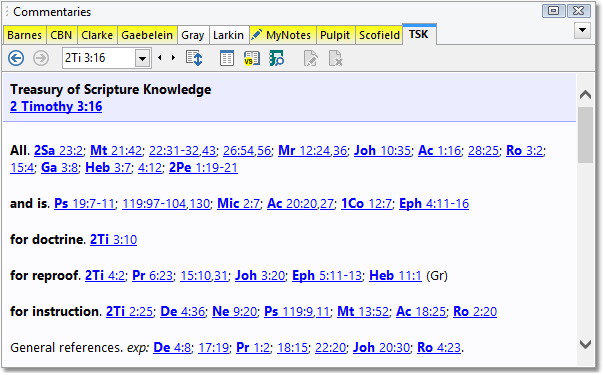
Sample Commentary panel
The tabs in the Commentary panel select which commentary to view. The tabs display abbreviations (e.g. "TSK" for the Treasury of Scripture Knowledge), and holding the mouse pointer over a tab for a moment will display the full name of the commentary. (Another way to access commentaries is from the main menu under Commentary > Select Commentary.) You can control which tabs are visible for your library items; see Managing Library Tabs.
As in this example, most commentaries have links to verses. You can move the Bible panel to a linked verse by clicking on it. Or for a quick view of the verse linked, hold the mouse pointer over the link to see the verse in a pop-up display.
A special color will be used to paint the tabs for other commentaries that have a matching entry. For example, if you have the TSK active, and are reading the entry on 2Ti 3:16, other commentaries (such as Barnes, Clarke, Pulpit, etc.) that have an entry on the same verse will have their tab specially colored as in the above sample. This is a quick visual way to see which commentaries have related material.
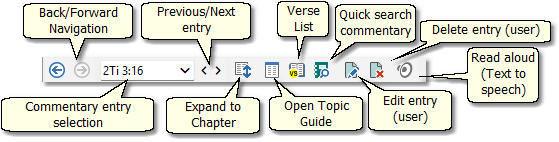
Sample Commentary panel toolbar
Back/Forward: Go back to a previous passage you were viewing as well as return.
Commentary Entry Selection: Here you can type in a verse reference to view the active commentary's text on that verse (if any), or use the pull-down selector to select an available entry. You can type a verse range if you want to read more than one commentary entry at a time, up to a full chapter. For example, Type "Ge 1" to view all of the comments on Genesis chapter 1 in the panel.
Previous/Next Entry: Moves to the previous or next entry in the commentary. Note that this does not always move one verse at a time, since commentaries do not always have text on every verse.
Expand to Chapter: Shows all of the entries in this commentary for the current chapter at once. Essentially, all of the commentary text pertaining to the current chapter is visible at once.
Verse List: (Load all Referenced Verses) If there are verse references in the current entry, this loads all of them at once into a Verse List Panel.
Open Topic Guide: Opens a Topic Guide set to the verse shown in the active commentary.
Quick Search Commentary: Provides a fast way to search for a word or phrase in the active commentary.
Delete, Edit Entry: These items are only active for user-created commentaries, and are for editing or deleting commentary text.
Read Aloud starts text-to-speech for the entry. You can select a word in the entry before clicking this button to begin playback at any arbitrary position.
StudyClick:
Hold down the CTRL key as you move the mouse pointer over words to turn them into links for instant StudyClick actions. See StudyClick.
The Commentary Panel Pop-up Menu
Right-click in the Commentary panel text display area for the Commentary panel pop-up menu.
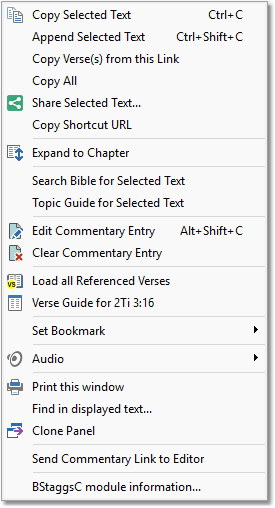
Sample Commentary panel pop-up menu
Most of these functions are self-explanatory. When a function refers to Selected Text it is referring to any text you may have marked in the Commentary panel with the mouse before right-clicking. If you have not selected any text, these functions will not apply.
Share Selected Text... invokes the Windows sharing functionality for the selected text. (Windows 10 only.)
Load All Referenced Verses: This function loads all of the referenced verses in the current entry in a Verse List panel.
If you right-click a verse link, you can select Copy Verse(s) From This Link to copy the linked verses to the clipboard without needing to load them in the Bible or Verse List panels.
Clone Panel creates a new panel with a copy of the current content. See Clone Panels for more information. Also, you may Ctrl+Click a verse link to open the linked reference in a new clone Bible panel.