Library tabs are the graphical controls used in SwordSearcher to represent the various library items (called modules) in the program, such as the KJV, Easton, Torrey, etc. They appear at the top of the Bible, Book, and Commentary panels.
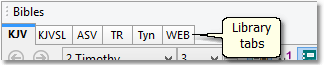
Sample of Bible library tabs
Using these tabs is fairly straightforward. Click KJV to bring the KJV Bible text into view. To switch to the KJVSL, click KJVSL, etc. You can also use the Bible, Book, and Commentary menus to select library modules.
Library module tabs also have their own right-click menus with some self-explanatory options.
A Few Points About Library Tabs
Holding the mouse pointer over a tab for a moment, such as KJV, will show the full name of the resource, such as King James Version. Right-click a tab and select "[Tab] Module Information" to view publication and/or copyright details for the module.
To configure the appearance of the tabs (shape, color, font, alignment), see the Library Tabs Appearance Preferences. If tabs take up too much space on your screen, be sure to review Hiding Tabs (below), or change the tab display structure to single row in the Library Tabs Appearance Preferences.
Opening Tabs that Aren't Visible
You can use the "Select Library Module" function on the File menu to open any library module, including modules with hidden tabs.
Or, you can use the handy drop-down list next to the tabs:
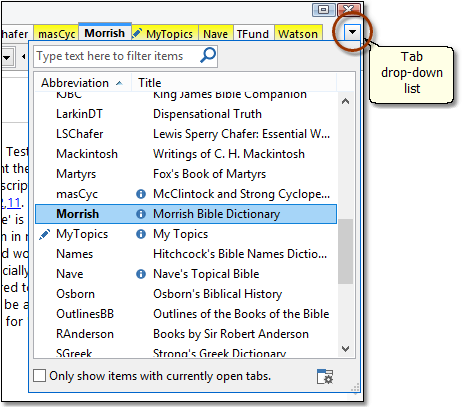
Tabs drop-down list
The drop-down list of library modules can be filtered with keyboard input. For example, start typing "Os" to quickly go to the Osborn Biblical History book in the list. If you want the list to be limited to modules with open (visible) tabs, check the Only show items with currently open tabs option.
In the Book and Commentary lists, a "round i" icon signifies that there is a corresponding entry for the module. This makes it easy to scan the list of modules to find ones that have an entry with the same title as the one you are currently viewing (e.g., Scripture).
Tip: Set up Module Shortcuts for your favorite tabs, so that you can instantly open them with a key press.
Hiding and Showing Tabs
You can hide library tabs for which you have no interest. Also, the first time you run SwordSearcher, many of the tabs are automatically hidden so as not to overload your display with tabs. Even when a library tab is hidden you can still open the module by going to File > Select Library Module.
To set up which tabs are always visible, configure Visible Library Tabs. This is how you tell SwordSearcher which tabs you always want to see. To do so, click Select Tabs to Show on the Tabs menu or click the library tabs button on the layout toolbar. You may configure visible library tabs to suit your own study needs.
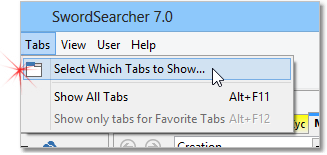 Sample Tabs Menu |
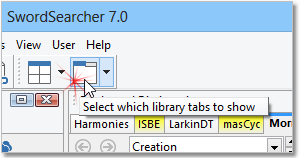 Sample Tabs Toolbar Button |
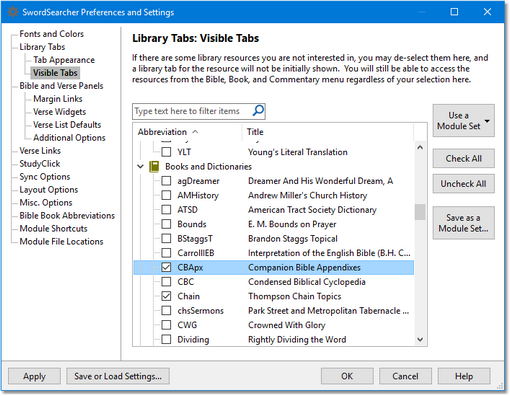
Sample showing the Visible Library Tabs section of Preferences.
Once you have configured your Visible Library Tabs preference, you can use the Tabs menu to apply the settings at any given time. Select Show All Tabs from the Tabs menu (or press Alt+F11) to make all tabs visible (ignoring your Visible Library Tabs preferences). This function is disabled if all tabs are already visible. Select Show Only Selected Tabs from the Tabs menu (or press Alt+F12) to hide all of the tabs that you have not selected. This function is disabled if you are already viewing only your preferred tabs.
If you select, for example, the TR Bible module from the Bible menu (Bible > Select Bible), but the tab is hidden, the tab for the TR module will be "unhidden" at that point to make the text visible. When you are ready to hide the TR tab again, select Show Only Selected Tabs from the Tabs main menu again (or press Alt+F12).
Please note that hidden library tabs do not mean that the library module is unavailable. At any time you can see all of the installed library modules by selecting File > Select Library Module, or the Select function on the Bible, Book, or Commentary menus.
The Module Selection Tool can also be used to toggle tab visibility.
Using Module Sets to Control Tabs
You can set up custom Module Sets to switch between different preferred groups of visible tabs. See the section on Module Sets for more information.