Copy Bible verses to the clipboard with just two clicks
Here is a fast and easy way to copy Bible verses from SwordSearcher to the Windows clipboard that avoids having to "click and drag" text in the screen to mark it. Copying verses this way makes putting together sermons, Bible studies, emails, and other documents a breeze.
In the Bible Panel or Verse List Panels:
Simply right-click any verse for the pop-up menu, and select the "Copy [verse]" item on the pop-up menu, like this:
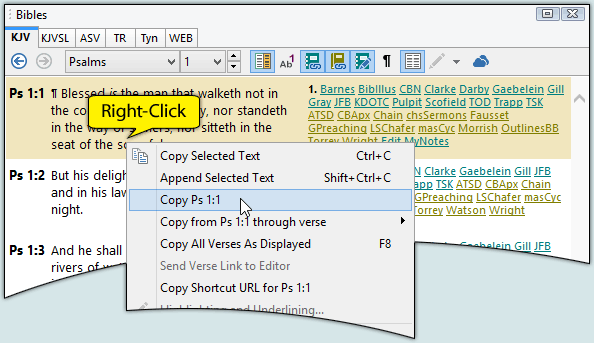
Notice in the sample above that there is an option to "Copy Ps 1:1" and an option to "Copy from Ps 1:1 through verse >." The first option copies the single verse to the clipboard, while the second option allows you to select another verse in the chapter to copy a range of verses. For example, Ps 1:1 though 1:3.
In Book and Commentary Panels:
The same right-click copy method applies when there are verse links in Book and Commentary panels: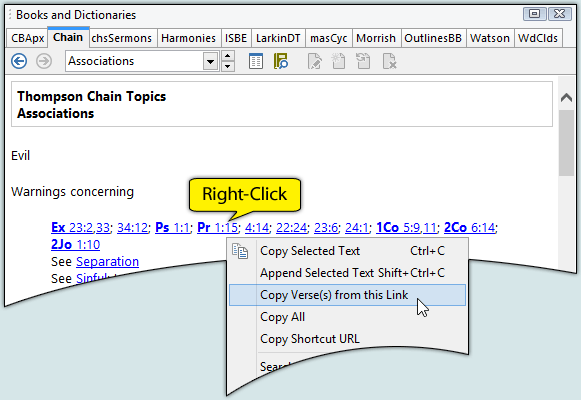
Selecting "Copy Verse(s) from this link" copies the text of the linked verse to the clipboard.
Configuring verse formatting
Another advantage to using this copy method (instead of marking text with the clipboard) is that SwordSearcher will format the verse according to your preferences, which you set in the Configure Verse Copy/Export Formatting dialog. Open this dialog on the Edit menu, and you can select from several different verse formatting options.
