Next we'll examine a quick way to search the Bible for some words.
To enter the words you want to search for, click the click the Go To Verse and Search toolbar text area (or press F6) and type a word or words:
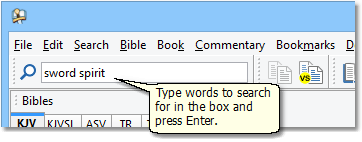
This is a sample image of the Go To Verse and Search box from the SwordSearcher main window.
For this example, we'll look for sword spirit, which will find verses that have both the words sword and spirit. After typing the words and pressing Enter, all of the verses in the active Bible text matching our search are loaded in a Verse List panel, which appears below the Bible panel like this:
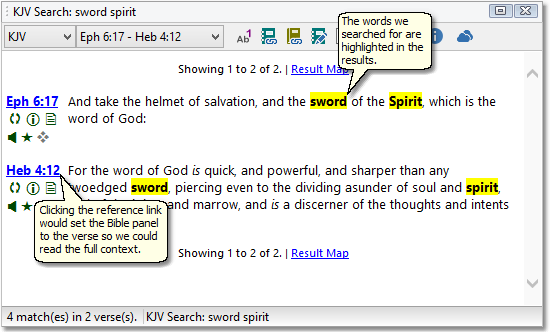
This is a sample image of a Verse List panel showing the results of our search.
As you can see, the words we searched for are highlighted. From a Verse List panel there are numerous things we could do to continue our study, such as opening a Verse Guide panel for one of the verses, viewing commentary links for the verses, etc.
(If you want to do an exact phrase search, place the words in quotes, like "love of God".)
If we hold the mouse pointer over a verse link in the Verse List, a preview of the context is shown. If needed, the link can be clicked to examine the entire chapter in the Bible panel.
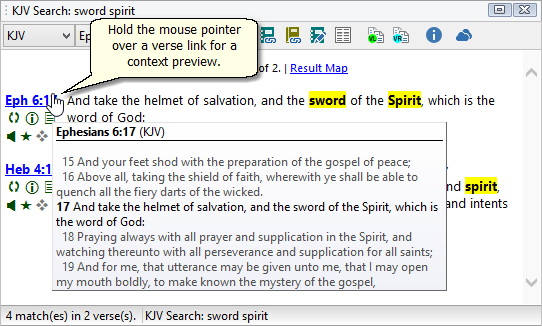
Sample of verse pop-up context preview in Verse List panel.
The Quick Bible Search toolbar is a fast way to find verses with words you have in mind. SwordSearcher supports a lot more than just simple word searching, too: if you need more control over the search, you can use the Search Bible dialog, or use Advanced Search Expressions.
You can also search the Bible by meaning using Natural Language Bible Search. The search bar includes a Help me find verses about option for searching by concept, and SwordSearcher can automatically detect natural language queries and suggest the appropriate search mode.
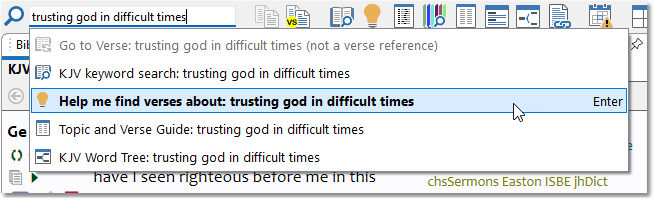
"Help me find verses about" from the main search bar.
Related topics: