SwordSearcher's Main Window Toolbar provides quick access to several often-used functions.

Sample of SwordSearcher's Main Toolbar Area
You can toggle the display of each section of the toolbar with the Toolbars sub-menu on the View main menu.
Go To Verse and Search Toolbar

Go to Verse and Search toolbar
The Go to Verse and Search toolbar is the fastest way to start studying a verse or perform a Bible search, and can also be used to open other search and visualization tools, or to open library modules.
To start studying a verse:
Type a verse reference and press Enter. The Bible panel will go to the specified verse; the Commentary panel will open the text for the specified verse in the active commentary; and a Verse Guide will be opened for the specified verse(s). You can disable the commentary and verse guide synchronization in Preferences: Sync Options.
Specify a verse by typing the first two or three letters of the book name. For books with numbers, use a digit like this: 2Ti 3:16 (for Second Timothy, chapter 3, verse 16). You can use a period instead of a semicolon for faster typing.
Here are some examples of valid verse references:
Ge 1.1 (for Genesis 1:1)
2Ti 3.16-17 (for Second Timothy, chapter 3, verses 16 and 17)
Ro 1 (for Romans chapter 1)
See Bible Book Abbreviations for SwordSearcher's standard Bible book abbreviations. SwordSearcher understands over 2,000 variations of Bible book abbreviations. When in doubt, just spell out the first few letters of a book name.
When you specify a range of more than one verse, such as a chapter, the Bible and Commentary panels are set to the first verse of the range, and the Verse Guide opens for the entire range (to a maximum of a full chapter).
To perform a Bible keyword search:
Type a word or words to search for and press Enter. A Verse List will be loaded with all of the verses matching your search using the Bible text that is currently active in the Bible panel.
While you will normally just type a word to search for, the search box also fully supports SwordSearcher's advanced search expression syntax (see for details).
Entering multiple words will find verses that contain all of the words. You can search for a phrase by enclosing the words in quotes, like "jesus christ". For more advanced searching capability, use the Search Bible dialog or advanced expressions.
If your search term does not match any verses in the active Bible text, SwordSearcher will open the Find Verses About dialog as a fallback, allowing you to search by meaning instead. This is especially useful when you can only vaguely remember a verse or want to find verses about a topic or concept. See Natural Language Bible Search for more details.
The search toolbar will also suggest alternate words if you enter a keyword search and it is not found in the active Bible text. For example, entering "color" in the search box when the KJV is active and choosing a keyword search will bring up this dialog:
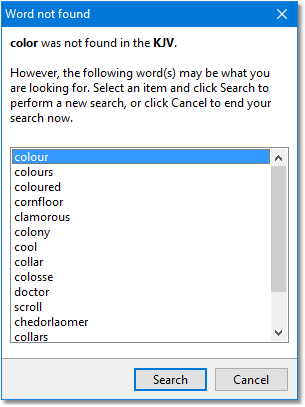
Word suggestion for "color" in the KJV
This is because color is spelled colour in the KJV, which uses British spelling. The suggestion dialog presents the most likely matching words. This feature works well any time you use an American spelling of words like savior, color, favor, etc., and is remarkably effective in correcting spelling errors. When this dialog appears, you can immediately press Enter to search the most likely word, or Esc to cancel.
For a more advanced word lookup tool, see the Word List feature of the Search Bible dialog.
Additional uses of the Go to Verse and Search toolbar
As you type in the search box, a suggestion menu will appear below the entry area. The most useful aspect of the suggestion box is predictive phrase suggestion. For example, if you start typing "God love" the following suggestions will appear:
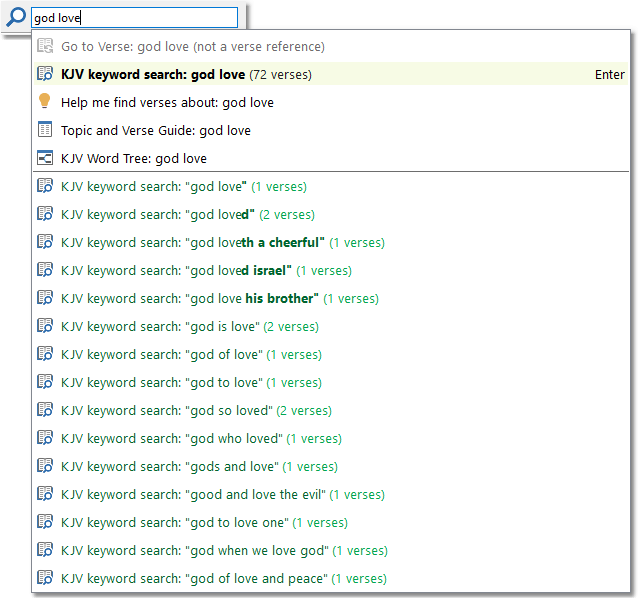
Sample suggestion list for search
Search suggestions will update immediately as you type, and you can use the down arrow key or mouse to select an option.
The Go To Verse and Search box can also be used to locate library modules, load a verse list (enter multiple references), open a topic guide, and start other tools in SwordSearcher.
Tip: You can "drag" selected text into the Go To Verse and Search box from another application (or from inside of SwordSearcher) and the text will be analyzed and an appropriate action taken, such as performing a Bible search or setting the current active verse.
Tip: You do not normally need to select the search box to start typing in it. From most areas in SwordSearcher, if you simply start typing, the text will go into the search box. To manually force keyboard focus to the search box, either click it, or press F6 or Alt+G.
Copy Tools Toolbar
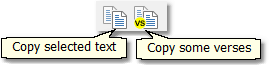
The Copy Tools Toolbar
Copy Selected Text: Copies selected text to the clipboard.
Copy Some Verses: Opens the Copy Verses dialog, for copying verses to the Windows clipboard.
Search Tools Toolbar
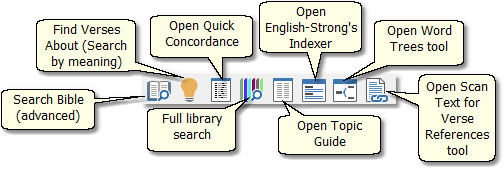
Search Tools Toolbar
Search Bible: Opens the advanced Search Bible dialog.
Find Verses About: Opens the Find Verses About window for natural language searching.
Open Quick Concordance: Opens the Quick Concordance tool.
Full Library Search: Opens the Full Library Search dialog, for searching the contents of the entire library at once.
Open Topic Guide: Opens the Topic and Verse Guide, a mega-index of all of the library modules.
Open English-Strong's Indexer: Opens the English-Strong's Indexer, an analytical concordance tool.
Open Word Trees tool: Opens the Bible Word Trees window for exploring connections between words and phrases.
Open Scan Text for Verse References tool: Opens the Scan Text for Verse References tool, which hot-links verse references in any text you provide, such as a document from a web page.
Tip: You can "drag" selected text into one of the above buttons from another application (or from inside of SwordSearcher). For example, you can drag text into the Search Bible button to pre-fill the search text, or drag a paragraph of text from a web browser to the Scan Text for Verse References button to see all of the verses referenced in the text.
Reading Schedule Toolbar
Reading Schedule Toolbar
Open Reading Schedule: Opens the daily Reading Schedule window. The Schedule Status Indicator lets you see, at a glance, the current state of your reading schedule (whether you are behind or up-to-date), if any.
Layout and Tabs Tools Toolbar
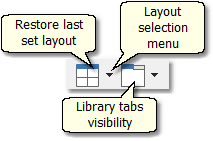
Layout and Tabs Tools Toolbar
Restore Last Set Layout positions and sizes the display panels (Bible, Book, etc) according to the last layout used ("Bible on Left" by default). The Layout Selection Menu selects which layout style to use, or saves and loads custom layouts. See Panel Layout.
Library Tabs Visibility opens the Visible Library Tabs page of Preferences, where you can select which library modules have visible tabs in the Bible, Book, and Commentary panels. Use this to switch off library modules you rarely use in order to reduce screen clutter. See Managing Library Tabs.
Tip: If your toolbars are missing, go to the View menu and look at the Toolbars sub-menu, and make sure you did not disable them.