SwordSearcher includes a natural language Bible search system that finds verses by meaning, not just keywords. Unlike a traditional keyword search, which looks for exact words, natural language search understands the concepts and ideas you are looking for and returns the most relevant verses with ranking.
You can search for words, ideas, questions, and concepts. For example:
•help in hard times
•comfort for those who are grieving
•instructions to husbands and wives
•God cares for me more than the birds
•thoughts in the morning
This is also useful when you vaguely recall a verse from memory and want to find it. Results are ranked by relevance, with the best matches shown first. Exact word matches automatically boost verse rankings in the results.
Use Natural Language Bible Search as a starting point for study. As with any Bible search tool, be sure to read verses in their context to determine the relevance of the verse to your search query and to understand its meaning and application.
Verses are ranked in order of semantic similarity to your search query. Some searches will produce more relevant verses than others. The further down you go on the list, the less likely the verses are to be relevant to your search.
Find Verses About
The Find Verses About dialog is the dedicated search window for natural language Bible search. Open it from the Search menu (Find Verses About...) or press Ctrl+Alt+F2.
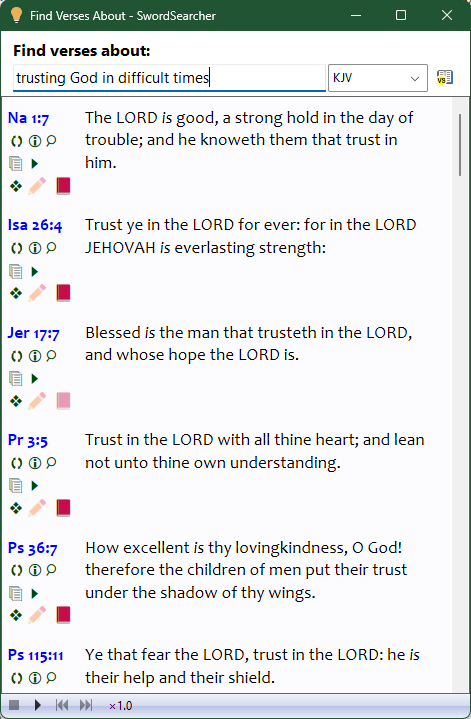
Sample of the "Find Verses About" dialog
Type a description of what you are looking for, and verse matches will auto-update as you type. You do not need to press Enter or click a button to see results; the list updates live as you refine your query. The window shows the top 50 matches.
Click the Load Results button (top-right) to load the results into a full Verse List panel for deeper study. This will load up to 500 ranked verses.
Use the Bible module selector to choose which Bible text to display.
If you want to limit the verses found to a specific part of the Bible, such as the New Testament or Paul's Books, use the Natural Language tab of the Search Bible dialog, shown below.
Find Verses About is also available as a StudyClick action. Hold Ctrl and click text in any Bible or resource panel to search for that text by meaning. Configure this in File > Preferences > StudyClick Options.
Main Search Bar Integration
The main Go To Verse and Search toolbar includes a natural language search option: Help me find verses about. Select this option from the search bar's drop-down menu to search by meaning instead of by keyword.
SwordSearcher also includes smart detection of natural language queries. When you type phrases like "verses about forgiveness" or "find passages about love" into the search bar, natural language search is automatically selected as the default action.
Additionally, if a keyword search returns no results, pressing Enter opens the Find Verses About dialog as a fallback, allowing you to try your search as a natural language query.
In the Search Bible Dialog
Natural language search is also available as a tab in the Search Bible dialog. Select the Natural Language tab and enter your query.
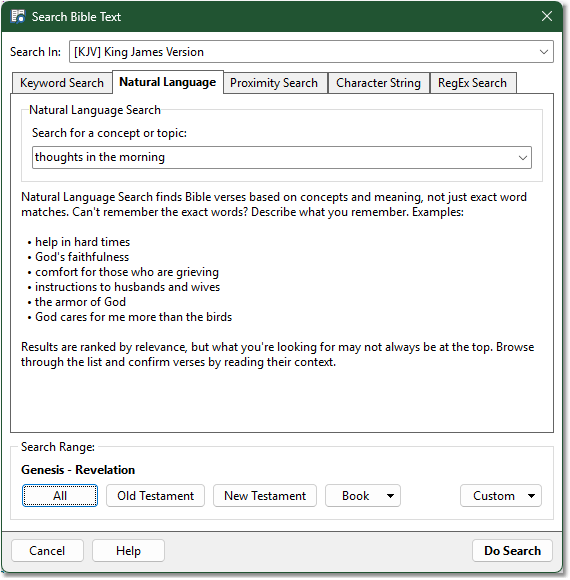
Sample of the Search Bible Text dialog showing the Natural Langage search tab.
The primary benefit of using this over the Find Verses About window is that it gives you the ability to define your search scope, such as limiting the results to verses in the New Testament. (See Search Bible Dialog for details.) Loading a search this way will show up to 500 ranked verses in a Verse List.
Tip: not all verses from a Natural Language Search will be truly relevant to what you are looking for. As you review the verse list you will get a sense when the meaning of the verses in the list start to become unrelated to what you have searched for.
Related topics:
The Search Bible Dialog (Keyword Search)