SwordSearcher includes built-in text-to-speech (TTS) that can read aloud the contents of any panel. Each panel has a speaker button on its toolbar to start playback, and the right-click menu also includes TTS commands.
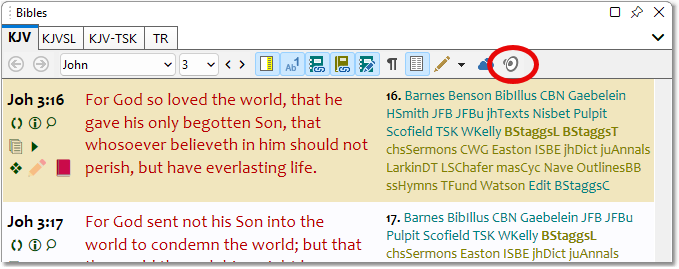
Sample showing the Bible panel's Read Aloud (Text to Speech) button.
Playback Controls
When TTS playback begins, a pop-up control window appears with:
•Play/Pause toggle to start or pause playback.
•Volume control to adjust the TTS volume.
•Speed control to speed up or slow down narration.
Close the pop-up control window or press ESC to cancel playback.
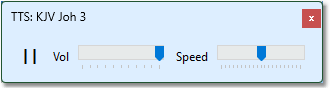
Sample Text-to-Speech playback control window
Highlighting and Scrolling
During TTS playback, SwordSearcher highlights and auto-scrolls the text being read:
•Bible and Verse List panels: Verse-level highlighting with auto-scrolling as each verse is read.
•Commentary and Book panels: Paragraph-level highlighting with auto-scrolling.
Reading Options
Read aloud from here: Clicking the playback button will start narration at the selected verse or text, and continue to the end. If no text is selected, playback will start from the beginning.
Selected text playback: Select text and then CTRL+Click the playback button to read only the selected verse or text.
Play Verse widget: In the Bible panel, the Play Verse Verse Widget works with TTS if no Audio Bible is configured.
Audio submenu: Audio-related commands (both TTS and Audio Bible) are collected under the Audio submenu on right-click menus.
Windows Voice Support
Text-to-speech uses the voices installed on your Windows system. To add or change voices, go to Windows Settings > Time and Language > Speech. Windows includes voices like Microsoft Mark, Microsoft David, and Microsoft Zira by default. Additional voices may be available for download from Microsoft. "Narrator" voices are not supported.
Configure Audio
TTS and Audio Bible settings are combined in a single configuration window. Access it from the File menu by selecting Configure Audio (or press Shift+Ctrl+A). Many of the items on the Playback Options tab control behavior for both Audio Bibles and Text-to-Speech.
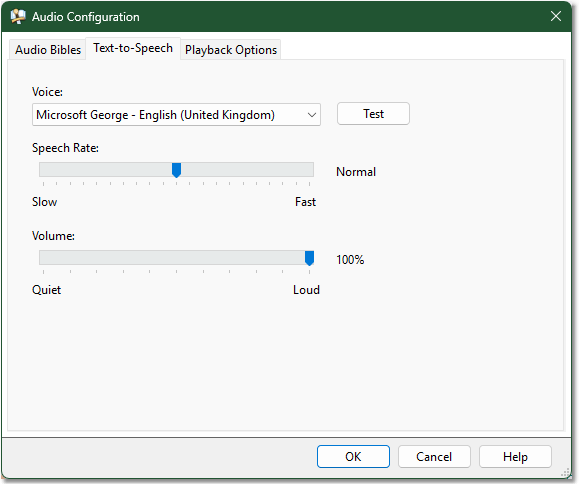
Sample Text-to-Speech Audio Configuration tab.
Related topics: